Daijiworld Media Network – Mumbai
Mumbai, Apr 12: A wave of concern has swept across social media over Google Pay’s ‘Pocket Money’ option, with viral posts and videos claiming that clicking the feature could result in unauthorized money being deducted from users’ accounts. These claims have triggered widespread debate, leaving many users questioning the safety of the new tool.
Amid the confusion, questions have emerged about the functionality and security of the feature. As a global digital payments leader, Google Pay operates under stringent security standards. Here is a closer look at the actual purpose and safeguards of the ‘Pocket Money’ feature.
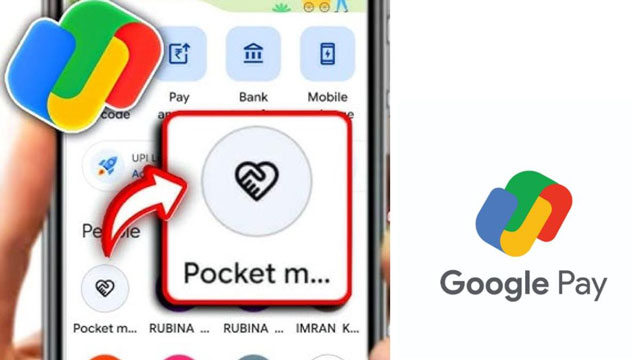
What is the ‘Pocket Money’ feature?
The feature is part of Google Pay’s ‘UPI Circle’ framework, specifically designed for families and dependents. It allows parents to enable digital transactions for their children using the parent's bank account, while maintaining complete control over usage. It essentially enables dependents to make payments without needing a separate bank account.
Key features and safeguards:
-
Spending Limits: Parents can set a monthly spending limit of up to Rs 15,000.
-
Approval Modes: If the "approval-based" mode is selected, every transaction attempt by the secondary user sends a request to the parent’s phone. Funds are transferred only after the parent grants approval.
-
User Management: A primary user can add up to five members under this feature.
-
KYC Requirement: For security, parents must complete a KYC process by submitting valid government identification to establish the relationship with the child.
Step-by-step guide to set up 'Pocket Money'
Step 1: Access UPI Circle Open the Google Pay app and tap the profile icon in the top-right corner. Select the ‘UPI Circle’ option from the menu.
Step 2: Add a member Choose the ‘Pocket Money’ setup and select the dependent from your contact list. Ensure the secondary user also has Google Pay installed.
Step 3: Scan QR code The primary user (parent) must scan the UPI Circle QR code displayed on the secondary user’s app to establish a secure, linked connection.
Step 4: Select payment mode
-
Full Delegation: Set a monthly spending limit (up to Rs 15,000), within which the child can make payments independently.
-
Approval-Based Mode: Every single transaction requires parental approval via a real-time notification.
Step 5: Complete KYC Enter relationship details and submit the required government ID to complete the KYC process. Confirm the setup using your UPI PIN.
How transactions are processed
Once the setup is complete, the secondary user can initiate payments by scanning QR codes or entering mobile numbers at shops. In the "Full Delegation" mode, payments within the set limit are processed instantly. In "Approval Mode," the transaction remains pending until the parent approves it on their device.
All transactions are recorded in the ‘Transaction History’ of both the primary and secondary users, ensuring complete transparency and real-time monitoring of spending.